Delta Lake Time Travel in 12 Minutes: Query, Compare and Recover Old Versions
Query old Delta versions, compare them, recover from a bad write, and set retention correctly now that Runtime 18 changed the rules.
TL;DR
- Every write to a Delta table creates a new version. Time travel lets you read any version that still has both its log entry and its data files.
- Three ways to ask for one:
VERSION AS OF 12,TIMESTAMP AS OF '2026-11-12', or the short formorders@v12. - Recovering from a bad write is either
RESTORE TABLE ... TO VERSION AS OF n(roll the whole table back) or anINSERT/MERGEfrom the old version (fix only the damaged rows). - Two table properties set the window:
delta.deletedFileRetentionDuration(files, default 7 days) anddelta.logRetentionDuration(history, default 30 days). On Databricks Runtime 18+, the file window is a hard limit. - Time travel is an undo button, not a backup.
The problem
At 16:40 on a Thursday, a NorthBridge Retail engineer ran a cleanup notebook against production instead of dev. One DELETE with a wrong date filter removed 2.3 million rows from northbridge.silver.orders.
On a plain Parquet data lake, this is a restore-from-backup ticket and a lost evening. On Delta, the fix took four minutes: find the version before the delete, check it, roll back. The only reason it took four minutes and not one was that nobody on the team had done it before.
This article is the "done it before" part.
Key concepts
| Concept | What it means | Why it matters here |
|---|---|---|
| Version | A sequential number for each commit (0, 1, 2…) | The most precise way to name a point in time |
| Commit timestamp | When the version was committed | Lets you ask "as of yesterday 9 a.m." |
_delta_log |
The folder of JSON commits and checkpoints | Says which Parquet files make up each version |
VACUUM |
Physically deletes files no longer referenced | The thing that ends time travel for old versions |
| Retention properties | How long files and history are kept | Decide how far back you can actually go |
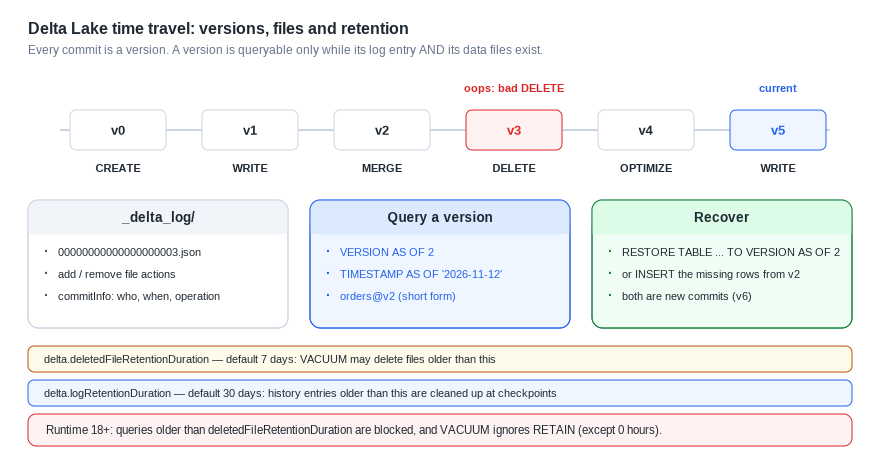 Each version is a commit in
_delta_log. You can read it only while its files survive VACUUM.
How it works in one paragraph
A Delta table is a folder of Parquet files plus a transaction log. Each commit records which files were added and which were removed. A DELETE doesn't erase anything: it writes new files without the deleted rows and marks the old files as removed. The old files stay on storage. So "the table as of version 12" is just "the set of files the log said were active at version 12", and as long as those files still exist, Spark can read them. There's more detail in Inside the Delta Transaction Log.
Step-by-step
Step 1 — Look at the history
-- Databricks Runtime 16.4 LTS+, Unity Catalog
DESCRIBE HISTORY northbridge.silver.orders LIMIT 10;
The columns you'll actually use:
| Column | Use it for |
|---|---|
version |
The number you'll time travel to |
timestamp |
When it happened |
operation |
WRITE, MERGE, DELETE, OPTIMIZE, RESTORE… |
operationParameters |
The predicate, e.g. ["(order_date < '2026-11-01')"] |
operationMetrics |
Rows and files touched, e.g. numDeletedRows |
userName |
Who ran it |
For the incident, DESCRIBE HISTORY showed version 57 as a DELETE with numDeletedRows = 2304118. The last good version was 56.
Step 2 — Query an old version
All three of these read version 56:
SELECT COUNT(*) FROM northbridge.silver.orders VERSION AS OF 56;

SELECT COUNT(*) FROM northbridge.silver.orders TIMESTAMP AS OF '2026-11-12 16:35:00';

SELECT COUNT(*) FROM northbridge.silver.orders@v56;
TIMESTAMP AS OF resolves to the latest version committed at or before that timestamp. It accepts anything castable to a timestamp, including expressions like current_timestamp() - INTERVAL 2 HOURS.
In PySpark:
# Databricks Runtime 16.4 LTS+, PySpark
v56 = spark.read.option("versionAsOf", 56).table("northbridge.silver.orders")
yesterday = (spark.read
             .option("timestampAsOf", "2026-11-12 16:35:00")
             .table("northbridge.silver.orders"))
Step 3 — Compare versions before you change anything
Always confirm what the bad write did before you undo it.
-- Rows present in v56 but missing now
SELECT order_date, COUNT(*) AS missing_rows
FROM (
  SELECT * FROM northbridge.silver.orders VERSION AS OF 56
  EXCEPT ALL
  SELECT * FROM northbridge.silver.orders
)
GROUP BY order_date
ORDER BY order_date;
Here it showed every order before 1 November had gone, which matched the wrong filter. It also confirmed nothing after version 57 needed preserving. That's the question that decides between the two recovery options.
Step 4a — Roll the whole table back with RESTORE
RESTORE TABLE northbridge.silver.orders TO VERSION AS OF 56;RESTORE doesn't delete history. It writes a new commit (version 58 here) that re-adds the files active at 56 and removes the ones added since. DESCRIBE HISTORY will show the RESTORE with metrics like restoredFilesSize and numRemovedFiles.
Use RESTORE when nothing good was written after the bad version. If the hourly order load had already appended version 58 with new orders, restoring to 56 would throw those away too.
Step 4b — Fix only the damaged rows
When good writes landed after the mistake, put back only what was lost:
INSERT INTO northbridge.silver.orders
SELECT * FROM northbridge.silver.orders VERSION AS OF 56
WHERE order_date < '2026-11-01';
For a bad UPDATE rather than a DELETE, use a MERGE from the old version:
MERGE INTO northbridge.silver.orders AS t
USING (
  SELECT * FROM northbridge.silver.orders VERSION AS OF 56
  WHERE region = 'SOUTH'
) AS s
ON t.order_id = s.order_id
WHEN MATCHED THEN UPDATE SET *;
Step 5 — Set retention on purpose
Two properties control how far back you can go:
SHOW TBLPROPERTIES northbridge.silver.orders;

ALTER TABLE northbridge.silver.orders SET TBLPROPERTIES (
  'delta.deletedFileRetentionDuration' = 'interval 30 days',
  'delta.logRetentionDuration'         = 'interval 30 days'
);| Property | Default | Controls |
|---|---|---|
delta.deletedFileRetentionDuration |
7 days | How old an unreferenced file must be before VACUUM can delete it |
delta.logRetentionDuration |
30 days | How long history entries are kept in _delta_log |
The defaults mean history is visible for 30 days, but data is only guaranteed for 7. That mismatch is the source of most "but DESCRIBE HISTORY shows version 40, why can't I read it?" questions.
What changed in Databricks Runtime 18
Databricks tightened these rules in Databricks Runtime 18.0 (and earlier for Unity Catalog managed tables):
- Time travel queries older than
delta.deletedFileRetentionDurationare blocked, even if the files happen to still exist. VACUUM ... RETAIN n HOURSignores the number, except0 HOURS. Retention comes from the table property.delta.logRetentionDurationmust be greater than or equal todelta.deletedFileRetentionDuration.
The practical upshot: if you want 30 days of time travel, set both properties to 30 days. Older tutorials that say "just don't run VACUUM" no longer apply.
From production: gotchas and lessons
-
Symptom: A time travel query to version 41 failed with a file-not-found error, even though
DESCRIBE HISTORYlisted version 41. Cause: History is kept 30 days; files only 7. A nightlyVACUUMhad removed the Parquet files that version needed. Fix: Set both retention properties to the window you actually need, and treat the file retention as the real limit. -
Symptom:
TIMESTAMP AS OFreturned a different version on a copied table than on the original. Cause: Without in-commit timestamps, timestamp-based time travel uses commit file modification times, which change when files are copied or replicated. Fix: UseVERSION AS OFfor anything that has to be exact, and enabledelta.enableInCommitTimestampson tables you replicate. -
Symptom: A
RESTORErolled back an hour of legitimate orders along with the bad delete. Cause: The team restored without checking for good commits after the mistake. Fix: Always readDESCRIBE HISTORYafter the bad version before choosingRESTORE. If anything good landed, use 4b. -
Symptom: A downstream streaming job reprocessed the restored rows as new data. Cause:
RESTOREre-adds files, and a stream reading the table sees them as appends. (If the restore also removes files, the stream fails instead, unless it's configured to skip change commits.) Fix: Pause downstream streams before a restore, and decide whether they should reprocess or skip.
Performance and cost notes
Time travel queries cost the same as reading the table at that size. They're not slower in principle, but old versions are often less compacted, since OPTIMIZE only rewrites the current files.
The real cost is storage. Longer file retention means every overwritten or deleted file stays on storage for longer. On a heavily updated table, 30 days of retention can double or triple the storage footprint. Set long retention on the tables where you'd actually need it, not across the whole catalog.
When not to use this
- As a backup. Time travel lives in the same storage account, under the same permissions, and expires. Use scheduled deep clones to another location; see Shallow vs Deep Clone and RESTORE.
- As a change log. If downstream jobs need "what changed since yesterday", use Change Data Feed. Diffing two full snapshots every run is expensive.
- For audit retention measured in years. Keeping years of unreferenced files is costly and slow. Model history explicitly (SCD Type 2 or append-only audit tables).
Frequently asked questions
Does OPTIMIZE break time travel?
No. OPTIMIZE creates a new version with compacted files. Old versions still point at the old small files until VACUUM removes them.
Can I time travel after DROP TABLE?
Not with VERSION AS OF. For Unity Catalog managed tables, UNDROP TABLE can bring the table back for a limited window (around 7 days).
Can a stream start from an old version?
Yes. spark.readStream.option("startingVersion", 56).table(...) starts from that version.
Checklist
- Know where to find
DESCRIBE HISTORYand whatoperationMetricsmeans - Practised
VERSION AS OF,TIMESTAMP AS OFand@vsyntax - Compared versions with
EXCEPT ALLbefore recovering - Can choose between
RESTOREand a targetedINSERT/MERGE - Both retention properties set deliberately on critical tables
- Downstream streams considered before any restore
- Real backups exist that don't depend on time travel
Practice
- Try: Delta Lake Interview Questions: 25 Scenario Problems
- Build it yourself: create a table, write five versions,
DELETEhalf the rows, then recover once withRESTOREand once withINSERT ... VERSION AS OF. CompareDESCRIBE HISTORYafter each.
Watch
Video companion planned for this article (12-minute walkthrough).
Further reading
Keep going
Inside the Delta Transaction Log: Commits, Checkpoints and Optimistic Concurrency
Read _delta_log yourself: what commits and checkpoints contain, how readers build snapshots, and how concurrent writers avoid corruption.
OPTIMIZE, VACUUM and Z-ORDER Explained: What Each One Actually Does
OPTIMIZE compacts, Z-ORDER sorts, VACUUM deletes. How each works, how to schedule them, and what predictive optimization and Runtime 18 changed.
Shallow vs Deep Clone and RESTORE: Safe Recovery Patterns for Delta Tables
When to use a shallow clone, a deep clone or RESTORE: test on real data, take real backups, and roll back bad writes safely.
One practical note a week
Get new articles, problems and guides in your inbox.
Thanks! You're on the list. (Local demo — no email provider is wired up yet.)